
Note: this documentation only applies to APIs purchased via MijnGS1!
Access to our APIs can be obtained by purchasing a product via MyGS1. Two environments are available: Sandbox and Production.
The Sandbox environment is intended for development and testing purposes. It allows developers to explore the APIs, build integrations, and run tests using test data, without affecting live systems or real customers. The software available on the Developers Portal can only be used in the Sandbox (Acceptance) environment.
The Production environment is intended for live use. It provides access to the APIs with real data and enables actual transactions. For the Production environment, customers are required to use their own software or implementation, as the Developers Portal software is not available for Production.
To use our APIs, you must follow these steps:
Purchase a product in the webshop
Retrieve a token — for this you need:
A ClientID
A Secret
Go to the Developers Portal to retrieve the token
Getting Started – Self Service API Authentication
Environment
Base URL
Sandbox
https://gs1nl-api-acc.gs1.nl/authorization
Production
https://gs1nl-api.gs1.nl/authorization
Retrieve Client ID and Client Secret
You can generate a token yourself. To do so, you will need a Client ID and a Secret, which are available in your MijnGS1 environment under My APIs → Authentication.
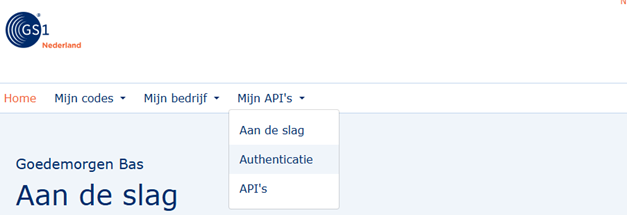
A Client ID is generated automatically when you purchase the API. You create the Secret yourself on the page where the Client ID is displayed.
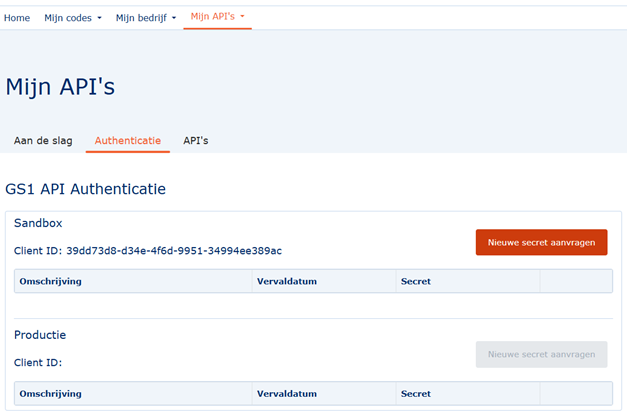
Click “Create new secret”
Enter a description for the new secret
Click “Request”
Important: Make sure you copy and securely store the secret. GS1 does not retain the secret for security reasons.
The “Close” button will only become visible once you check the box confirming that you have copied the secret.
You can create a maximum of two secrets. Creating a third secret requires deleting an existing one first.
Secrets have an expiration date, so be sure to monitor this carefully.
Deleting a Secret
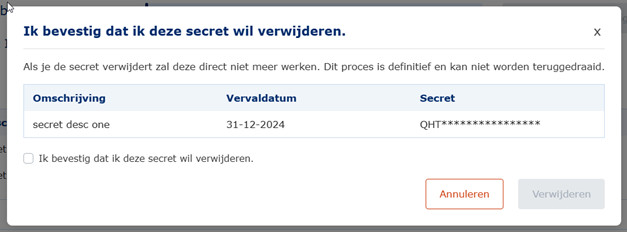
Delete a secret by clicking the trash‑can icon next to the secret on the Authentication page. Confirm the action in the pop‑up window to indicate that you want to remove the secret.

Retrieve a Token
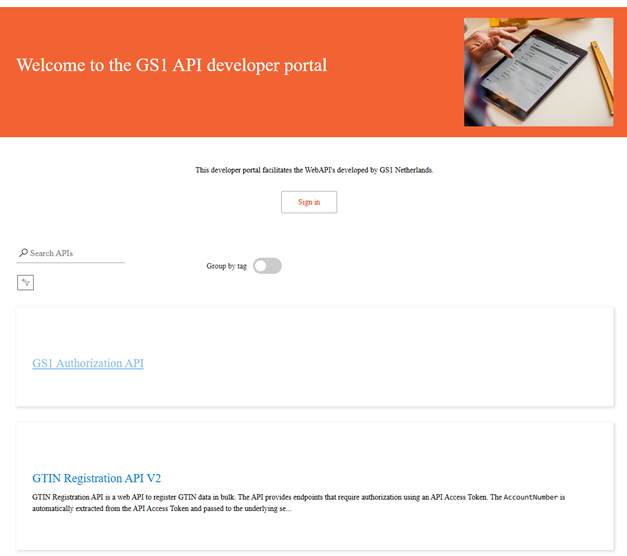
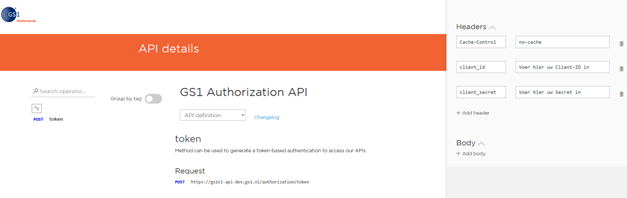
With your Client ID and Secret, you can retrieve the token. To do this, go to the GS1 Authorization API via the Developer Portal (see the URI's at the top of this documentation):
Steps:
Select “GS1 Authorization API”
Select “Try it”
In the slide‑out panel:
Enter the values “client_id” and “client_secret”
Provide your Client ID and Secret
Scroll down and click “Send”
Copy the generated token (excluding the quotation marks)
Using the Token
You can use the token to execute requests against our APIs. Include the token in the Authorization header, prefixed with Bearer.